Our environment, called ‘163Oxygen’ because of our science roots, requires Multi-Factor Authentication (MFA) (sometimes called Second Factor Auth, 2FA). Although you’ll use your departmental credentials as the ‘first factor’, the MFA our environment requires is in addition to any MFA you already have for your home department. Furthermore, we actually require so-called ‘push’ MFA. You’ll need to use the Microsoft Authenticator App on an Android or iOS device, although it does not need to be a GC-issued device.
If you are using the MS Auth App for other GC resources, adding MFA for our environment will not affect any of those.
¶ First time setup
- You should be automatically prompted the first time you try to get to your cloud space. If not, you can go directly to the MySignins page for our environment: https://mysignins.microsoft.com/security-info?tenantId=163oxygen.onmicrosoft.com
- If prompted between MS Authenticator App and Hardware token, choose the MS App.
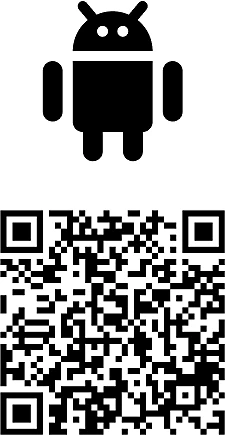
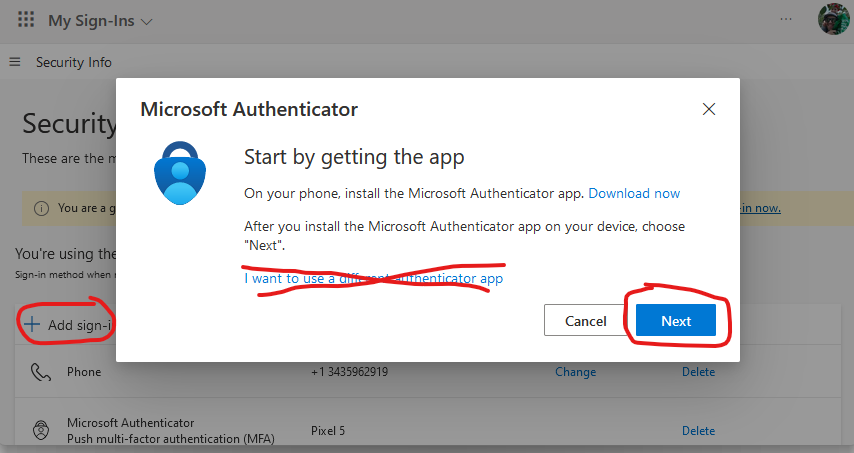
- As prompted on the 'Start by getting the app' step, if you don't already have it installed, install the MS Authenticator App on your device; you can click the 'Download now' link for detailed instructions & QR codes to open the correct app store page for your device. Once the app is installed, click 'Next'.
Note that many app stores will sell advertising space in their search results; be sure to install the Microsoft Authenticator App. As of Aug 2025 these QR codes will bring you to the correct apps depending on your phone OS:

- As suggested by the 'Set up your account' page, in the MS Auth app on your phone, press the plus (or QR code) button to add an account. Your phone should now be on a QR code scanning screen, e.g. using the camera. If asked, you're adding a 'work or school' account.
- Back on the webpage, click the next button to get to the QR code page. Scan this with your phone, and it should set up the account. You should now see an entry titled '163Oxygen' in the list.
- On the 'Scan the QR code' page, click 'Next'.
- The setup wizard will now have you test your setup; you'll be given a two digit number and you should be prompted on your phone to enter it. Enter the number and click yes, and the setup wizard should confirm it was approved.
You can configure up to 5 total MFA methods; if you have a second device this can be quite handy in case of a lost/replaced/wiped device. If you were automatically prompted to setup MFA, you can add additional MFA on the My Sign-Ins page at https://mysignins.microsoft.com/security-info?tenantId=163oxygen.onmicrosoft.com .
Do note that during the setup, the option to ‘use another authenticator app’ is offered, unfortunately our security policy does not support this option and you must use the Microsoft Authenticator App.
¶ Adding a new/backup phone
-
If you still have access to your original device: you can setup another MFA device visiting the same My Sign-Ins page as noted above.
-
No access to original MFA device: if you’re unable to get to the My Sign-Ins (e.g. because it prompts you for MFA, which you can't now do), reach out to our team through whatever method you usually do and we’ll be able to get you sorted out.
¶ No ability to use a phone/device for MFA
In the rare case you're unable to use an Android or iOS device for MFA (e.g. no cell reception, worksite restrictions), please reach out to our team as we have options for these exceptional cases.